
Adventures in Markdown
A showcase of how markdown is styled on blog pages. Markdown is a lightweight markup language that you can use to add formatting elements to plaintext text documents. Created by John Gruber in 2004, Markdown is now one of the world’s most popular markup languages.
Why Use Markdown?
There are several reasons why you might want to use Markdown:
- Simplicity: Markdown’s syntax is very simple and easy to learn.
- Versatility: You can use Markdown for everything from notes to books to web content.
- Portability: Since Markdown is just plain text, you can edit it in any text editor.
Markdown Examples
Lists
Ordered
1. First item
2. Second item
3. Third item
- First
- Second
- Third
Unordered
- First item
- Second item
- Third item
- First item
- Second item
- Third item
Blockquotes
You can create a blockquote by starting a line with a greater-than symbol:
> Markdown is a lightweight markup language.
Markdown is a lightweight markup language.
Emphasis
You can add emphasis to text by surrounding it with asterisks or underscores:
*italic* or _italic_
**bold** or __bold__
***bold and italic*** or ___bold and italic___
- Italic
- Bold
- Bold and Italic
Links
You can create links by wrapping the link text in brackets, and then wrapping the URL in parentheses:
[Astro](https://astro.build/)
Images
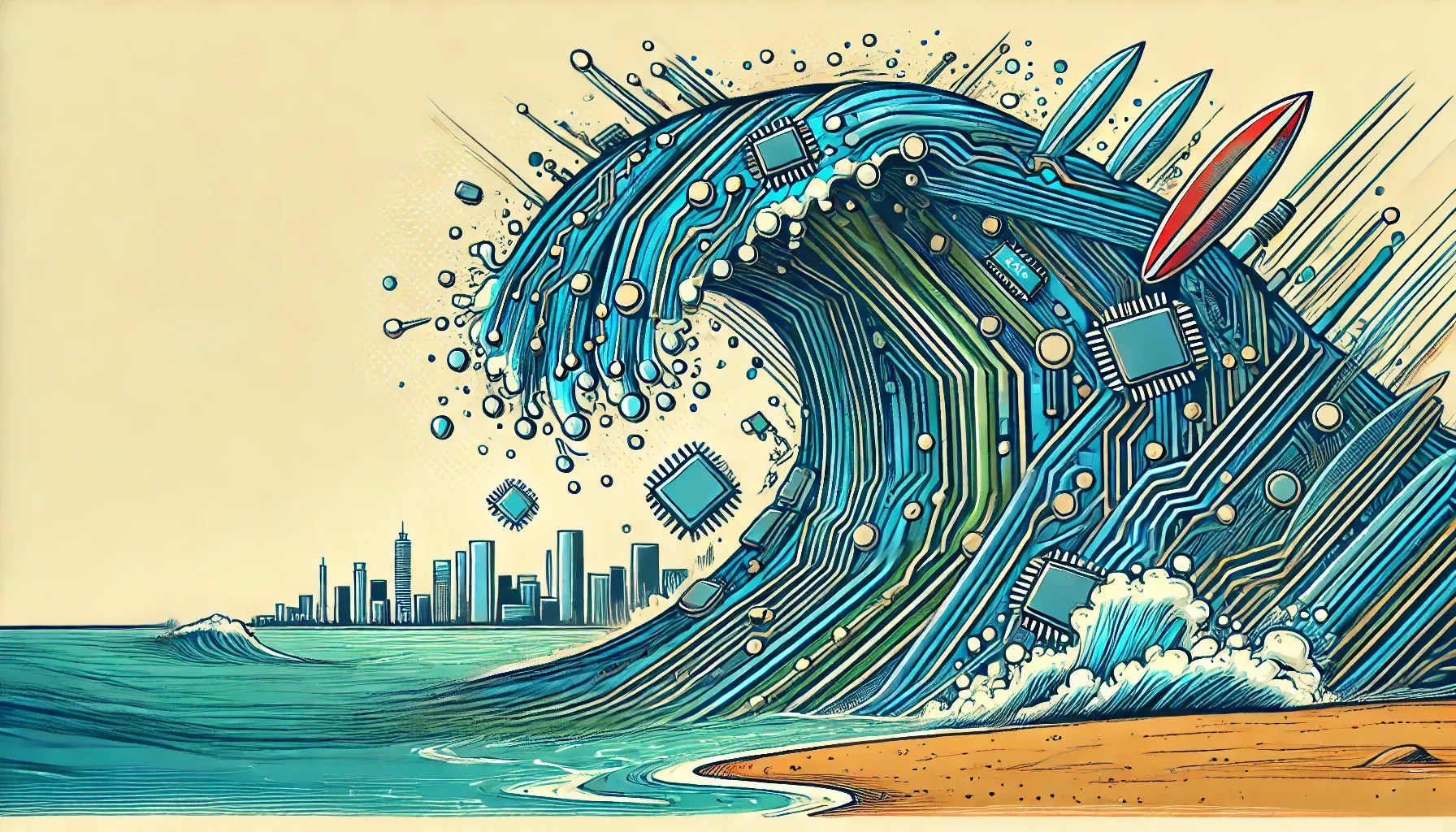
To add an image, you use the same syntax as links, but add an exclamation mark at the beginning:




Horizontal Rule
You can create a horizontal rule by using three or more hyphens, asterisks, or underscores:
---
Tables
You can create tables using pipes and hyphens.
Text Table
| Syntax      | Description |
| ----------- | ----------- |
| Header      | Title       |
| Paragraph   | Text        |
| Syntax | Description |
|---|---|
| Header | Title |
| Paragraph | Text |
Image Table
| | | |
-|-|-
 |  | 
 |  |
 | | |
| |
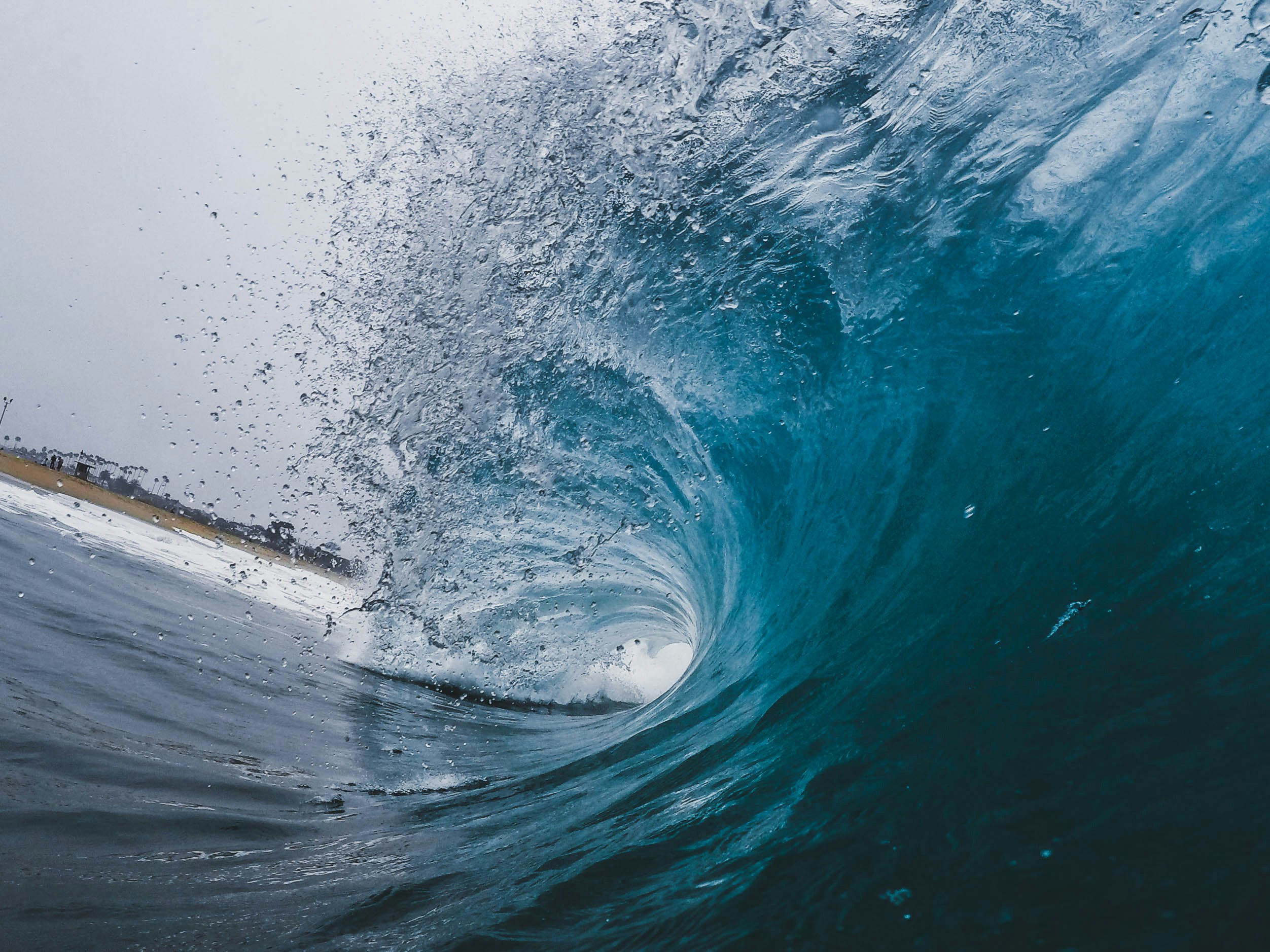
Photo by Jeremy Bishop on Unsplash
Image & Text Table
| | |
-|-
 | Photo by <a href="https://unsplash.com/photos/time-lapse-photography-of-ocean-waves-iftBhUFfecE">Jeremy Bishop</a> on <a href="https://unsplash.com/photos/time-lapse-photography-of-ocean-waves-iftBhUFfecE">Unsplash</a>
 | 
Photo by <a href="https://unsplash.com/photos/time-lapse-photography-of-ocean-waves-iftBhUFfecE">Jeremy Bishop</a> on <a href="https://unsplash.com/photos/time-lapse-photography-of-ocean-waves-iftBhUFfecE">Unsplash</a> | Photo by <a href="https://unsplash.com/photos/time-lapse-photography-of-ocean-waves-iftBhUFfecE">Jeremy Bishop</a> on <a href="https://unsplash.com/photos/time-lapse-photography-of-ocean-waves-iftBhUFfecE">Unsplash</a>
| Photo by Jeremy Bishop on Unsplash |
| |
| Photo by Jeremy Bishop on Unsplash | Photo by Jeremy Bishop on Unsplash |
Alignment
You can align text in the columns to the left, right, or center by adding a colon (:) to the left, right, or on both side of the hyphens within the header row.
| Syntax      | Description | Test Text     |
| :---        |    :----:   |          ---: |
| Header      | Title       | Here's this   |
| Paragraph   | Text        | And more      |
| Syntax | Description | Test Text |
|---|---|---|
| Header | Title | Here’s this |
| Paragraph | Text | And more |
Checklists
To create checklist, add dashes (-) and brackets with a space ([ ]) in front of task list items. To select a checkbox, add an x in between the brackets ([x]).
- [x] thing 1
- [ ] thing 2
- thing 1
- thing 2
Dropdowns
<details>
<summary>Example</summary>
This is a dropdown with text!
</details>